
Editor Layout
The MapEdit editor is organized into a top toolbar, a resizable left sidebar, the map canvas with floating tool panels, and contextual panels that appear when you interact with features.
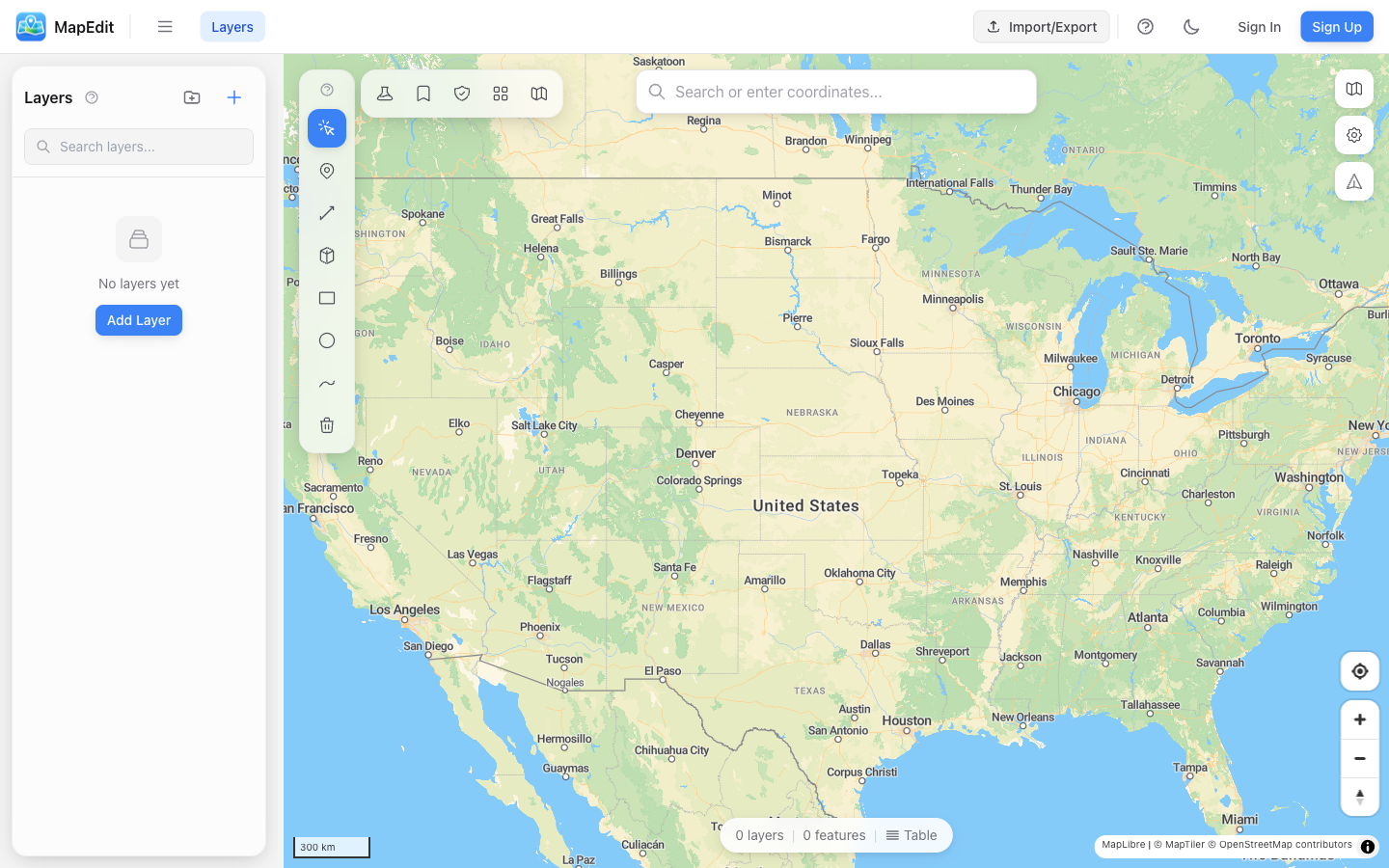
Top Toolbar
The toolbar across the top of the screen provides project-level actions:
- Project name — Click to return to the Projects page
- Sidebar toggle — Show or hide the left sidebar
- Save — Save your project (highlights when there are unsaved changes)
- Import/Export — Opens a modal to import files or export your data
- Compose — Open the Map Composer for print-ready exports (saved projects only)
- Share — Create shareable links with access controls (saved projects only)
- Dark mode toggle — Switch between light and dark themes
- Account menu — Access settings, sign out, or sign in
Left Sidebar
The resizable sidebar on the left contains the Layers panel, where you manage all your map layers:
- Create, rename, and delete layers
- Drag to reorder layers (top layers draw on top)
- Toggle layer visibility with the eye icon
- Open layer style settings
- Organize layers into collapsible groups
Drawing Tools (Top-Left of Map)
A vertical toolbar in the top-left corner of the map provides drawing and selection tools. Click a tool or press its keyboard shortcut:
- Select (V) — Click features to select, move, or edit vertices
- Point (P) — Add marker points
- Line (L) — Draw paths and routes
- Polygon (G) — Create filled areas
- Rectangle (R) — Draw rectangular shapes
- Circle (C) — Create circular areas
- Freehand (F) — Draw shapes by clicking and dragging freely
- Delete (D) — Click features to remove them
Analysis Tools (Top-Left, Next to Drawing Tools)
A horizontal row of buttons to the right of the drawing tools gives access to analysis and utility features:
- Measurement — Measure distances and areas on the map
- Buffer — Create buffer zones around features
- Spatial Operations — Union, intersect, clip, dissolve, simplify, and more
- Routing — Calculate driving, cycling, or walking routes
- Bookmarks — Save and restore map views by name
Map Controls (Top-Right of Map)
Controls stacked along the top-right corner of the map:
- Basemap picker — Switch between map styles (streets, satellite, dark, etc.)
- Map settings — Toggle feature labels, border perspective, and POI visibility
- Compass / reset north — Returns the map to north-up orientation
Zoom in and out with the mouse wheel, pinch gesture, or the + / - keyboard keys. The cursor's current coordinates appear in the bottom-left corner.
Search Bar (Top-Center)
The search bar is centered at the top of the map. Type at least 3 characters to search for a location by name, then click a result to fly to that place.
Feature Properties (Right Side)
When you select a feature on the map, a floating panel appears on the right side of the map showing:
- Feature name and rich-text description editing
- Geometry information (type, area, perimeter, or length)
- Custom properties with add/edit/delete
- Individual feature styling overrides
- Delete feature button
Status Bar (Bottom-Center)
A small status pill at the bottom center of the map shows the current layer count, feature count, and the name of the selected layer. It also includes a button to open the attribute table.
Coordinate Display (Bottom-Left)
The bottom-left corner shows the cursor's current latitude and longitude as you move across the map.