
Bookmarks
Save map views as bookmarks for quick navigation. Bookmarks remember the location, zoom level, and map orientation so you can return to important views instantly.
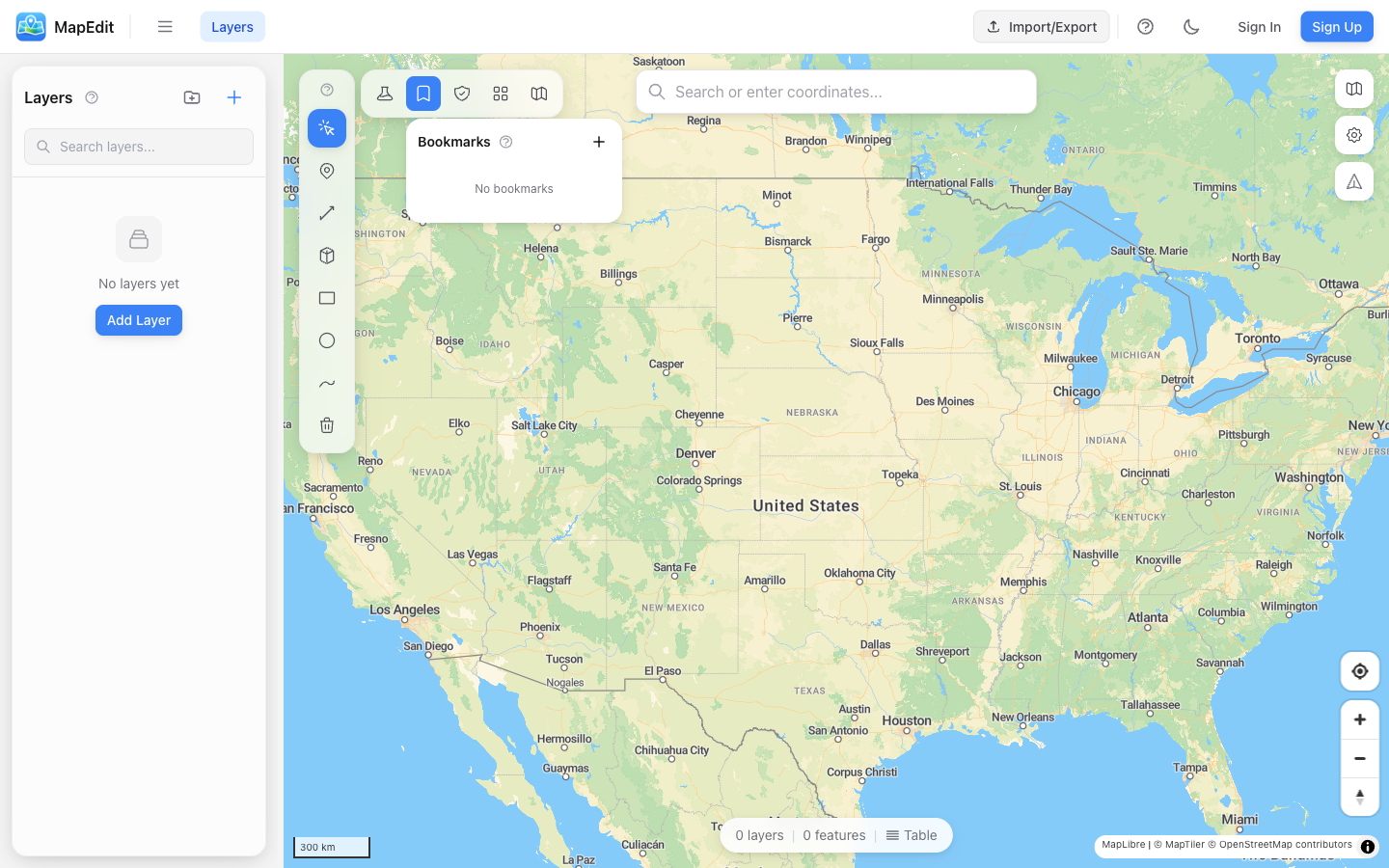
Creating a Bookmark
- Navigate to the view you want to save
- Click the bookmark icon in the analysis toolbar
- Click "Add Bookmark"
- Enter a name for the bookmark
- Press Enter to save
What Bookmarks Save
- Center location — The map coordinates at center
- Zoom level — How far zoomed in or out
- Bearing — Map rotation (if rotated)
- Pitch — 3D tilt angle (if tilted)
Using Bookmarks
- Click the bookmark icon to open the panel
- Click on any bookmark in the list
- The map smoothly animates to that view
Managing Bookmarks
Rename or delete bookmarks as needed:
- Rename — Double-click the bookmark name
- Delete — Click the trash icon next to the bookmark
- Reorder — Bookmarks are listed in creation order
Bookmark Persistence
Bookmarks are saved locally in your browser:
- Bookmarks persist between sessions
- They are specific to your browser/device
- Clearing browser data will remove bookmarks
Bookmarks are not synced across devices or saved with your project. They are a personal navigation aid stored locally.
Use Cases
- Quick navigation between work areas
- Saving views for presentations
- Marking areas that need review
- Comparing different regions
Tips
- Use descriptive names like "Downtown Detail" or "Full Extent"
- Create a "Home" bookmark for your default view
- Delete unused bookmarks to keep the list manageable