
Map Settings
Customize how the map displays labels, points of interest, and borders. Access map settings by clicking the gear icon in the map controls.
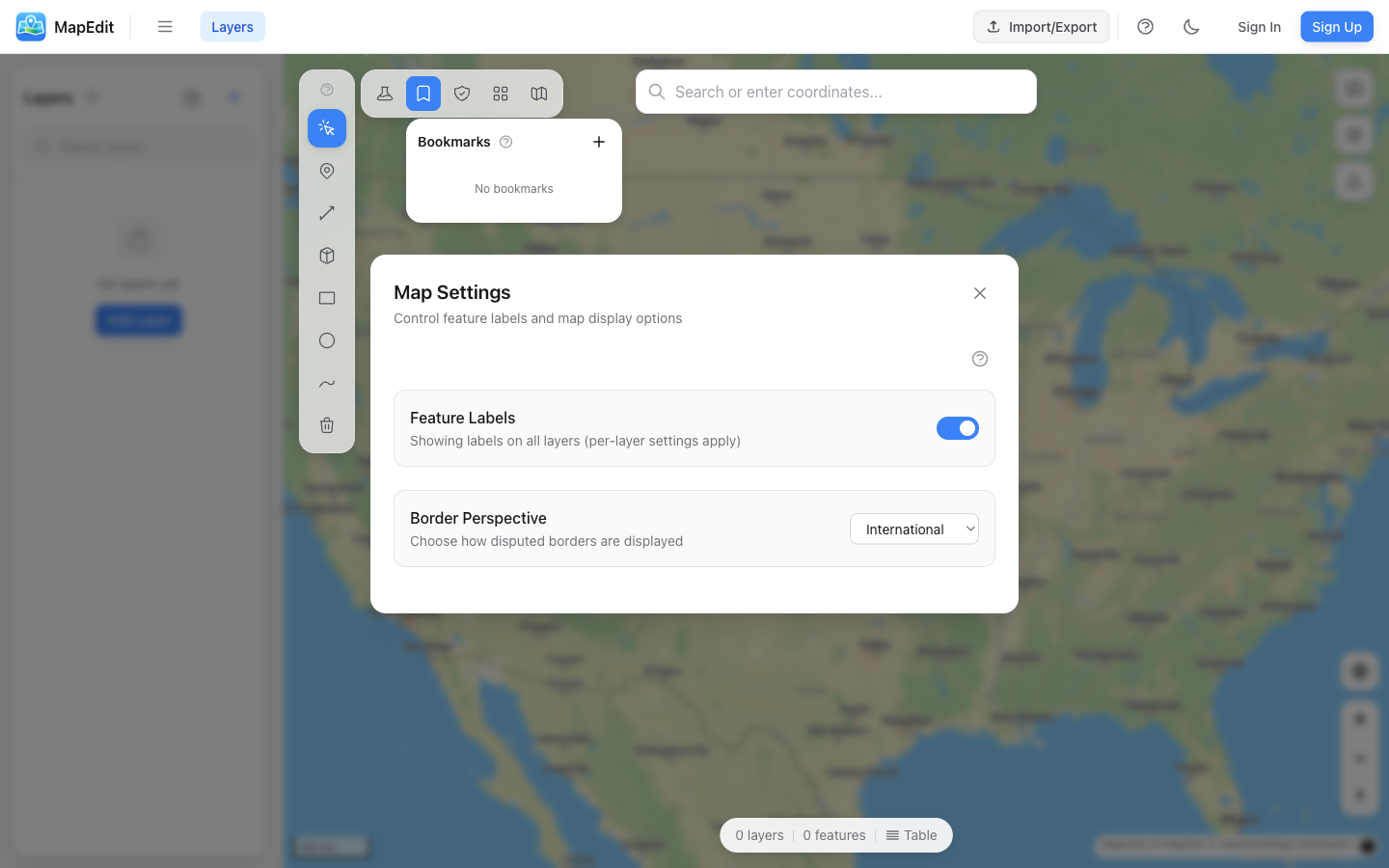
Feature Labels
Control whether labels are shown for your map features:
- Global toggle — Show or hide all feature labels
- Per-layer setting — Override for specific layers
- Labels display the feature name
Hide labels when exporting clean maps for presentations. Show them when you need to identify features quickly.
Border Perspective (MapLibre only)
Choose how disputed international borders are displayed:
- International — Neutral/default border rendering
- United States — Borders as recognized by the US
- China — Borders as recognized by China
- India — Borders as recognized by India
- Japan — Borders as recognized by Japan
- Russia — Borders as recognized by Russia
This setting only affects how the basemap draws international borders. It doesn't change your own feature data.
Apple Maps Settings
When using Apple Maps basemaps, additional options are available:
Clean Map Mode
Enable Clean Map Mode to hide all points of interest and city labels, creating a minimal basemap:
- Hides all POI markers (restaurants, shops, etc.)
- Hides city and place name labels
- Creates a clean background for your data
- Ideal for thematic maps and presentations
POI Categories
When Clean Map Mode is off, you can selectively show or hide POI categories:
- Food & Drink — Restaurants, cafes, bakeries, breweries, wineries
- Shopping — Stores and markets
- Parks & Recreation — Parks, beaches, campgrounds, aquariums
- Sports — Golf, hiking, skiing, stadiums, and more
- Travel — Airports, gas stations, hotels, parking, public transit
- Arts & Culture, Education, Entertainment, Health & Safety, Landmarks, and more
Use "Enable All" or "Disable All" buttons to quickly toggle all categories at once.
When to Use Settings
- Clean Map Mode — For presentations and printed maps
- Selective POIs — When specific context is helpful
- Full POIs — For navigation and orientation
- Border Perspective — For region-appropriate maps