
Buffer Zones
Create buffer zones around existing features at a specified distance. Buffers are useful for proximity analysis, setback calculations, and service area planning.
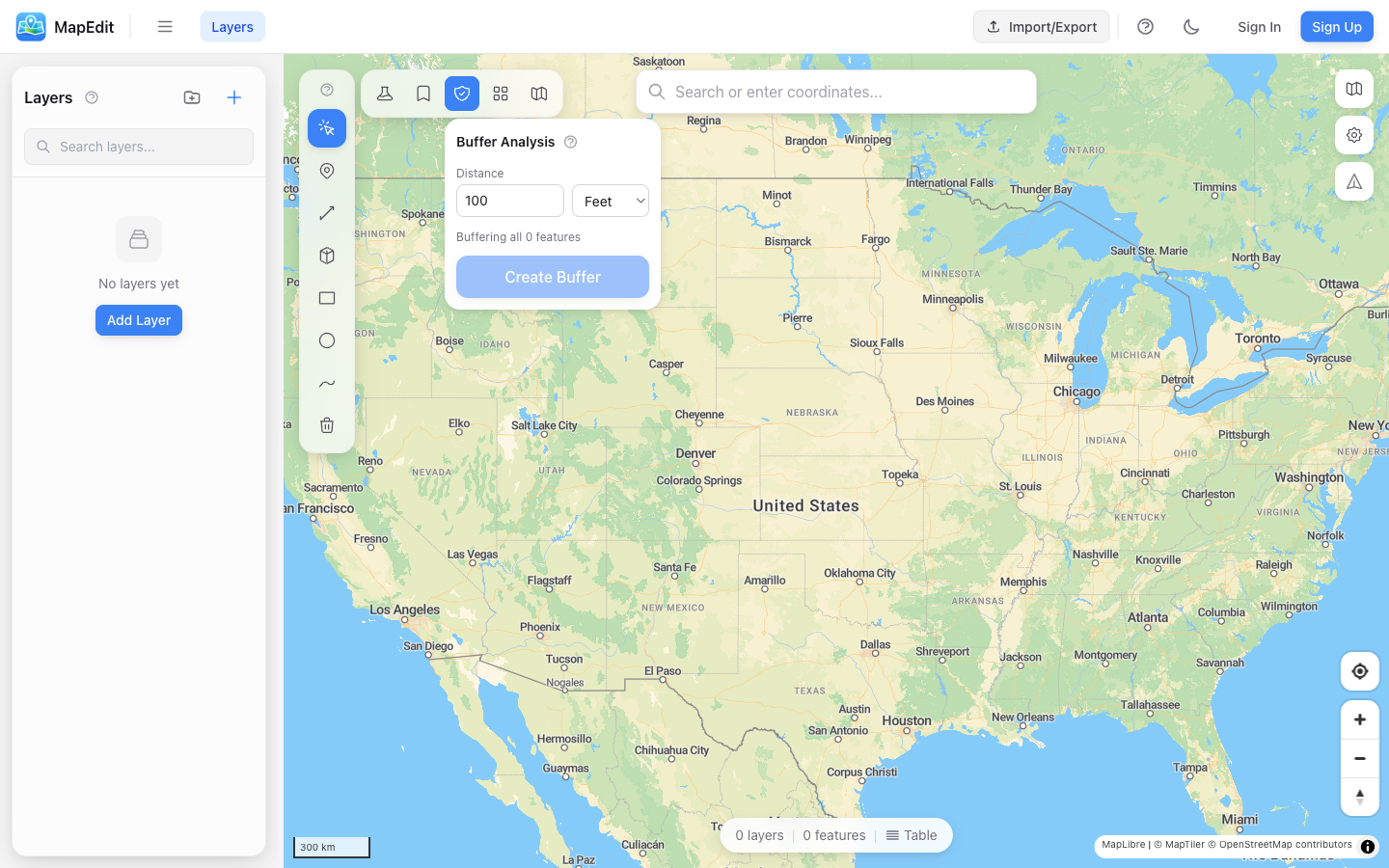
What is a Buffer?
A buffer is a polygon that surrounds a feature at a constant distance. For example:
- Point buffer — Creates a circle around the point
- Line buffer — Creates a corridor along the line
- Polygon buffer — Expands or contracts the polygon boundary
Creating a Buffer
- Click the buffer icon in the analysis toolbar
- Enter the buffer distance
- Select the distance unit (meters, kilometers, miles, feet)
- Choose what to buffer: selected feature or entire layer
- Choose where to place results: new layer or existing layer
- Click Create Buffer
Buffer Options
- Distance — How far the buffer extends from the feature
- Units — Meters, kilometers, miles, or feet
- Source — Buffer selected feature or all features in a layer
- Output — Create new layer or add to existing layer
Distance Units
- Meters (m) — Standard metric unit
- Kilometers (km) — For larger buffers
- Miles (mi) — Imperial unit
- Feet (ft) — For smaller imperial buffers
Use Cases
- Walking distance — 400m or 5-minute walk radius
- Service areas — Delivery zones, coverage areas
- Setbacks — Building setbacks from property lines
- Hazard zones — Safe distances from facilities
- Conservation — Buffer zones around protected areas
For multiple buffers at different distances (e.g., 1km, 2km, 5km rings), create separate buffers and style each with different colors or opacity.
Buffer vs. Circle
When should you use Buffer vs. the Circle drawing tool?
- Buffer Tool — Exact distance around existing features
- Circle Tool — Quick visual circles at any location
Use the Buffer tool when you need precise distances or want to buffer existing points, lines, or polygons.