
Measurement Tools
Measure distances and areas directly on the map. The measurement tools provide accurate calculations using geodesic formulas that account for Earth's curvature.
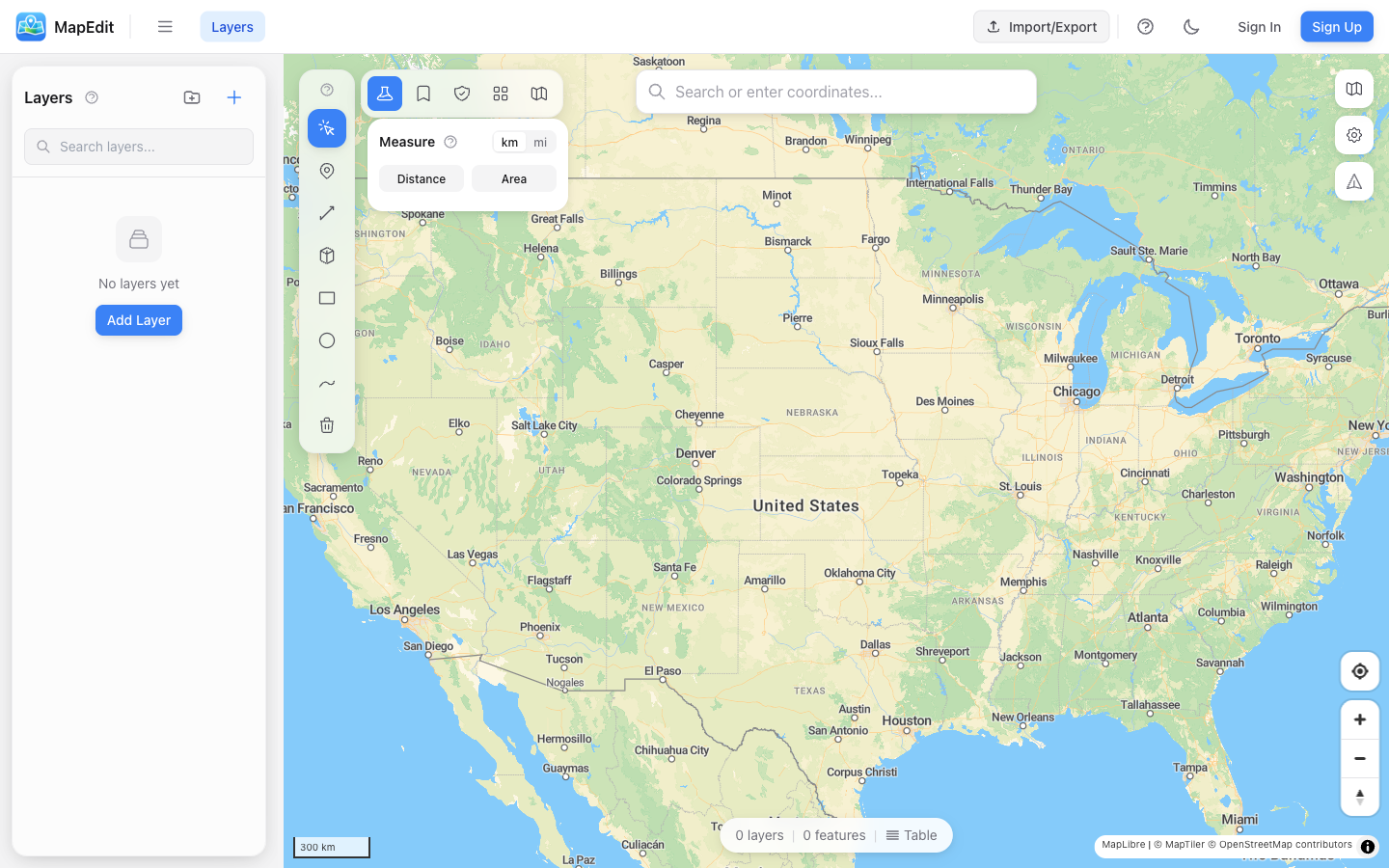
Accessing Measurement
- Click the ruler icon in the analysis toolbar
- Choose Distance or Area mode
- Click on the map to start measuring
Measuring Distance
- Select Distance mode
- Click on the map to set the starting point
- Click additional points to add segments
- View the total distance and individual segments
- Double-click to finish, or click Clear to start over
Measuring Area
- Select Area mode
- Click on the map to place polygon vertices
- Continue clicking to define the area boundary
- View the calculated area and perimeter
- Double-click to finish, or click Clear to start over
Unit System
Toggle between metric and imperial units:
- Metric — Kilometers (km), meters (m), hectares (ha), square kilometers (km²)
- Imperial — Miles (mi), feet (ft), acres, square miles (mi²)
Your unit preference is saved and will be remembered for future sessions.
Measurement Details
The measurement panel shows:
- Total distance or area
- Perimeter (for area measurements)
- Individual segment lengths
- Click any segment to see its length
Accuracy
Measurements use geodesic calculations that account for:
- Earth's curvature (not flat plane calculations)
- Accurate results for any distance
- Precision suitable for most mapping needs
For survey-grade precision, use professional surveying equipment. Map measurements are suitable for planning and estimation.
Tips
- Zoom in for more precise point placement
- Measurements are temporary — they don't create permanent features
- Click Clear to remove the current measurement and start over